Artificial intelligence chat platforms have become more flexible than ever, allowing users to choose the language model that best fits their needs. One popular combination is Janitor AI and DeepSeek, which gives users access to fast, intelligent conversations for roleplay, creative writing, coding, brainstorming, and much more.
If you’re wondering how to set up DeepSeek on Janitor AI, you’re in the right place.
This guide walks you through the entire process in simple language. Whether you’ve never used an API before or you’re switching from another AI provider, you’ll learn exactly what you need to do. We’ll also explain why each step matters, point out common mistakes, and share practical tips that can save you time.
By the end of this guide, you’ll have DeepSeek connected to Janitor AI and be ready to start chatting with confidence.
What Is Janitor AI?
Janitor AI is an AI chatbot platform that lets users interact with custom characters. Instead of relying on a single built-in language model, it allows you to connect external AI providers through an API.
This approach gives you more control over:
- Conversation quality
- AI model selection
- Response speed
- Pricing
- Creativity
- Memory and context
Because of this flexibility, many users choose DeepSeek as their preferred AI model.
What Is DeepSeek?
DeepSeek is a family of large language models designed to generate natural, detailed, and context-aware responses. Depending on the model you choose, it can perform well in tasks such as:
- Creative writing
- Character roleplay
- Programming assistance
- Storytelling
- Brainstorming ideas
- Summarizing documents
- Answering technical questions
DeepSeek has become popular because it offers strong performance while remaining affordable compared to many other commercial AI models.
Why Use DeepSeek with Janitor AI?
Many users combine these two platforms because they complement each other well.
Some of the biggest advantages include:
Better Roleplay
DeepSeek can maintain character personalities, remember conversation context, and produce detailed responses that feel natural.
Faster Responses
Many DeepSeek models generate replies quickly, making long conversations smoother.
Lower Costs
Depending on your usage, DeepSeek’s API pricing may be more budget-friendly than some competing language models.
Flexible Model Selection
You can switch between different DeepSeek models depending on whether you want faster responses, better reasoning, or improved storytelling.
Greater Control
Since you’re using your own API, you control your account, usage, and available models.
What You’ll Need Before You Begin
Before connecting DeepSeek to Janitor AI, make sure you have everything ready.
A Janitor AI Account
Create your account and verify your email if required.
A DeepSeek Account
You’ll also need an account with DeepSeek or another supported API provider offering DeepSeek models.
Valid API Key
The API key is what allows Janitor AI to communicate securely with DeepSeek.
Treat this key like a password. Never share it publicly or include it in screenshots.
API Credits
If you’re using a paid API, ensure your account has sufficient credits or an active billing method. Even a correct setup won’t work if your account has no available balance.
A Modern Web Browser
Using an updated browser helps avoid compatibility issues when saving settings or loading chat sessions.
Understanding How the Connection Works
Before jumping into the setup, it’s helpful to understand what’s happening behind the scenes.
Think of Janitor AI as the interface where you chat.
DeepSeek is the engine that generates the responses.
The API acts as the bridge connecting the two.
The flow looks like this:
You → Janitor AI → DeepSeek API → AI Response → Janitor AI → You
Once configured correctly, this process happens automatically every time you send a message.
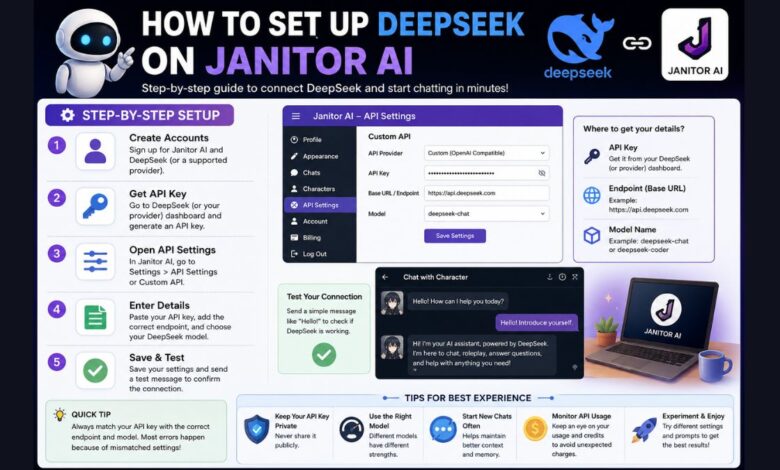
How to Set Up DeepSeek on Janitor AI
Now let’s go through the complete setup process.
Sign In to Janitor AI
Log in to your Janitor AI account.
Once you’re on the dashboard, open your account settings.
Depending on updates to the platform, the exact menu names may vary slightly, but look for sections related to:
- API Settings
- Model Settings
- External API
- Custom API
Get Your DeepSeek API Key
Next, sign in to your DeepSeek account.
Navigate to the developer or API section.
Generate a new API key if you don’t already have one.
When the key appears:
- Copy it immediately.
- Store it somewhere secure.
- Avoid sharing it with anyone.
If you lose the key later, you may need to generate a new one.
Open API Settings in Janitor AI
Return to Janitor AI.
Locate the area where external AI providers can be configured.
You’ll typically find fields such as:
- API Provider
- API Key
- Base URL
- Model Name
- Save Settings
These fields tell Janitor AI exactly how to communicate with DeepSeek.
Paste Your API Key
Paste your DeepSeek API key into the API Key field.
Double-check that:
- No spaces were copied accidentally.
- No extra quotation marks were included.
- The entire key was pasted correctly.
A single missing character can prevent authentication.
Configure the Correct Endpoint
The endpoint (sometimes called the Base URL) tells Janitor AI where requests should be sent.
Use the endpoint provided by your API provider.
If you’re using:
- DeepSeek directly
- OpenRouter
- Another supported provider
make sure the endpoint matches that specific provider.
One of the most common setup mistakes is mixing an API key from one provider with the endpoint from another.
Always keep them matched.
Choose the Correct Model
Next, select or enter your preferred DeepSeek model.
Available models may change over time as newer versions are released.
If a model isn’t recognized, verify:
- The spelling
- The exact model identifier
- Whether your account has access to that model
Using an outdated model name is one of the most common reasons users receive a “Model Not Found” error.
Save Your Settings
Once you’ve entered all the required information:
- Save your configuration.
- Refresh the page if necessary.
- Return to the chat interface.
Many users forget this step and wonder why their settings aren’t working.
Always save before testing.
Start a Test Conversation
Choose any character in Janitor AI and send a simple message, such as:
“Hello! Can you introduce yourself?”
If everything has been configured correctly, DeepSeek should generate a response within a few seconds.
This confirms the connection is working.
Example Setup Workflow
Here’s a simplified example of the process:
- Create a Janitor AI account.
- Create a DeepSeek account.
- Generate an API key.
- Open Janitor AI settings.
- Select a custom or supported API provider.
- Paste the API key.
- Enter the correct endpoint.
- Choose a compatible DeepSeek model.
- Save the settings.
- Test the connection with a short conversation.
Following these steps carefully helps avoid most setup issues.
Tips for a Smooth Setup
Before you start chatting, keep these practical tips in mind:
Double-Check Every Field
Most connection problems are caused by simple typing mistakes.
Keep Your API Key Private
Anyone with your API key may be able to use your account’s credits.
Start with Short Conversations
A quick test message makes it easier to confirm the setup before beginning a long chat.
Save Your Settings
Always save changes before closing the settings page.
Stay Updated
AI platforms regularly introduce new models and configuration options. Checking for updates occasionally can improve performance and compatibility.
Why Your Setup Might Not Work the First Time
Even experienced users sometimes encounter issues during the initial setup. A small typo in the API key, selecting the wrong model, or using an incorrect endpoint can prevent Janitor AI from connecting to DeepSeek.
The good news is that most problems are easy to fix once you know where to look. In the next part of this guide, we’ll cover the most common errors, explain how to troubleshoot them, compare DeepSeek models, recommend the best settings for roleplay and creative writing, answer frequently asked questions, and share expert tips to help you get the best possible experience from Janitor AI and DeepSeek.
Troubleshooting Common DeepSeek Setup Problems
Even if you’ve followed every step carefully, there’s a chance you’ll run into an issue the first time you connect DeepSeek to Janitor AI. Fortunately, most problems have straightforward solutions.
Below are the most common errors users face and the steps you can take to fix them.
Invalid API Key
If Janitor AI displays an authentication or authorization error, the API key is usually the first thing to check.
Possible Causes
- The API key was copied incorrectly.
- The key has been deleted or regenerated.
- Extra spaces were included when pasting it.
- The API key belongs to a different provider than the selected endpoint.
How to Fix It
- Generate a new API key if necessary.
- Copy the key directly from your API dashboard.
- Remove any accidental spaces before or after the key.
- Confirm that the API key matches the provider you’re using.
Model Not Found
This error usually appears when Janitor AI cannot locate the model you’ve entered.
Possible Causes
- Incorrect model name
- Typing mistakes
- Using an outdated model identifier
- Your account doesn’t have access to the selected model
How to Fix It
Always verify the model name from your API provider’s documentation. If a newer model has replaced an older one, update your settings accordingly.
Network Error
A network error doesn’t always mean your internet connection is down.
It may also indicate:
- Temporary server maintenance
- Incorrect API endpoint
- Firewall restrictions
- Provider outages
- Browser-related issues
Try These Steps
- Refresh the page.
- Check your internet connection.
- Verify the API endpoint.
- Try another browser.
- Wait a few minutes and try again.
Rate Limit Reached
Every API has usage limits.
If you’ve sent many requests in a short period, the provider may temporarily limit additional requests.
Solution
Simply wait a few minutes before trying again. If you regularly reach the limit, consider upgrading your API plan if your provider offers higher usage tiers.
Empty Responses
Sometimes Janitor AI accepts your message but returns no reply.
This can happen because:
- The selected model is unavailable.
- The request timed out.
- The conversation became too large.
- Temporary server issues occurred.
Starting a fresh conversation often resolves the problem.
Best Settings for DeepSeek on Janitor AI
The ideal settings depend on how you plan to use the AI.
Below are general recommendations for different tasks.
For Roleplay
If you enjoy immersive character conversations:
- Use a balanced creativity setting.
- Allow longer responses.
- Keep conversation memory enabled when available.
- Avoid extremely low creativity, which can make replies repetitive.
For Creative Writing
When writing stories or brainstorming ideas:
- Increase creativity slightly.
- Allow generous response lengths.
- Encourage descriptive writing through your prompts.
Example:
“Write detailed descriptions with natural dialogue and emotional depth.”
For Coding Assistance
When using DeepSeek for programming:
- Keep creativity moderate.
- Ask clear, specific questions.
- Include error messages whenever possible.
Instead of asking:
“My code doesn’t work.”
Try:
“This Python function returns a TypeError. Here’s the code and expected output.”
Providing context usually leads to better answers.
For General Conversations
If you’re chatting casually:
- Moderate response length works well.
- Keep prompts simple.
- Start new conversations when switching topics.
Tips to Improve AI Responses
Even the best AI model depends on the quality of your prompts.
Here are some practical ways to get better results.
Be Specific
Instead of asking:
“Tell me about history.”
Try:
“Explain the causes of the Industrial Revolution in simple English.”
Specific prompts produce more useful responses.
Give Context
Imagine you’re asking a human expert for help.
Instead of saying:
“Write an article.”
Try:
“Write a beginner-friendly article explaining electric vehicles for people who know nothing about cars.”
The additional context helps the AI understand exactly what you need.
Break Large Tasks into Smaller Ones
Rather than asking for an entire book in one request, divide it into sections.
This approach usually produces higher-quality output.
Continue Conversations Naturally
DeepSeek remembers recent context within a conversation.
Instead of repeating everything, build upon previous messages.
For example:
“Can you make that explanation simpler?”
or
“Add more examples.”
This saves time and improves consistency.
Protect Your API Key
Your API key gives access to your account.
Treat it the same way you would treat a password.
Never:
- Share it publicly.
- Post screenshots containing it.
- Upload it to public code repositories.
- Send it through unsecured messages.
Always:
- Store it securely.
- Regenerate it immediately if you suspect it has been exposed.
- Use separate keys for different projects if your provider supports that feature.
Taking these precautions helps prevent unauthorized usage and unexpected charges.
Managing API Costs
Many users are surprised when they begin using an API for the first time.
Unlike subscription-based chat services, APIs often charge based on the number of tokens processed.
To keep costs under control:
- Test with short conversations first.
- Avoid unnecessarily long prompts.
- Start new chats instead of continuing extremely long conversations.
- Monitor your API dashboard regularly.
- Review your usage reports if available.
These habits can help you use DeepSeek efficiently without wasting credits.
Is DeepSeek a Good Choice for Janitor AI?
For many users, the answer is yes.
DeepSeek offers a combination of:
- Fast responses
- Strong reasoning
- Natural writing
- Creative storytelling
- Competitive pricing
- Reliable performance
However, the best model depends on your personal needs.
If you mainly enjoy roleplay, you may prefer one model.
If you’re writing code every day, another model may suit you better.
Experimenting with different options is the best way to discover what works for your workflow.
FAQs
Can I use DeepSeek on Janitor AI for free?
Janitor AI itself may be free to use, but accessing DeepSeek usually requires an API key. Depending on your provider, you may receive free credits or need to pay based on usage.
Do I need programming knowledge?
Most users can complete the setup by following the instructions carefully. The process mainly involves copying an API key, selecting the correct provider, and saving your settings.
Why is my API key not working?
Check for typing mistakes, accidental spaces, expired keys, or a mismatch between your API key and endpoint. If necessary, create a new key and update your settings.
Which DeepSeek model should I choose?
The best model depends on your goals. Faster models are ideal for everyday conversations, while larger reasoning models are often better for coding, analysis, and complex writing tasks. Always review the latest model options offered by your API provider.
Can I switch models later?
Yes. You can usually change models from your API or Janitor AI settings without creating a new account. Keep in mind that different models may vary in speed, quality, and pricing.
Is my conversation private?
Your conversations are generally processed by the AI provider you connect to through the API. Review both Janitor AI’s and your API provider’s privacy policies to understand how data is handled, stored, and protected.
What should I do if responses are slow?
Slow responses may be caused by high server demand, long prompts, or temporary network issues. Try shortening your prompt, starting a new chat, or waiting a few minutes before trying again.
Quick Setup Checklist
Before you start chatting, make sure you’ve completed each of these steps:
- ✔ Created a Janitor AI account
- ✔ Created a DeepSeek or compatible API account
- ✔ Generated an API key
- ✔ Entered the correct API endpoint
- ✔ Selected a supported DeepSeek model
- ✔ Saved your settings
- ✔ Tested the connection with a short conversation
- ✔ Verified that responses are being generated correctly
If every item on this checklist is complete, you’re ready to enjoy a smoother AI chat experience.
Final Thoughts
Learning how to set up DeepSeek on Janitor AI may seem intimidating at first, especially if you’ve never worked with APIs before. However, once you understand the basic process—creating an account, generating an API key, entering the correct endpoint, selecting a compatible model, and testing the connection—it becomes much easier.
The most important thing is to take your time during the initial setup. Double-check your API key, verify that the endpoint matches your provider, and make sure you’re using a supported model. These small details prevent most common errors and help you avoid unnecessary frustration.
Once everything is configured, you can enjoy a powerful AI experience for roleplay, creative writing, programming, brainstorming, learning, and everyday conversations. As DeepSeek and Janitor AI continue to evolve, staying informed about new models and updated features will help you get the best possible performance from your setup.
Whether you’re a beginner exploring AI for the first time or an experienced user looking for a flexible chatbot platform, this guide gives you the knowledge you need to connect DeepSeek to Janitor AI with confidence and start making the most of its capabilities.